ONLINE IMAGE TOOLS

Resize image online

Set the dimensions for a website, listing or social post without uploading your image. Choose proportional resizing, cropping, padding or stretching and check the output dimensions before saving.

Drop your image hereor choose a file to get started

JPG, PNG or WebP · Up to 15 MB · 16 megapixels

Free to useNo account neededProcessed on your device

What would you like to do?

Choose a tool to start editing.

How to use this tool

  1. Open a JPG, PNG or WebP image from your device.
  2. Enter dimensions or a percentage, choose the fit and apply the size.
  3. Choose the download format and save your new image.

Compare the original and the result

The examples below show images before and after editing in PicMender.

A narrower image, with the same proportions

Reduce the width for a smaller layout while keeping the subject’s proportions.
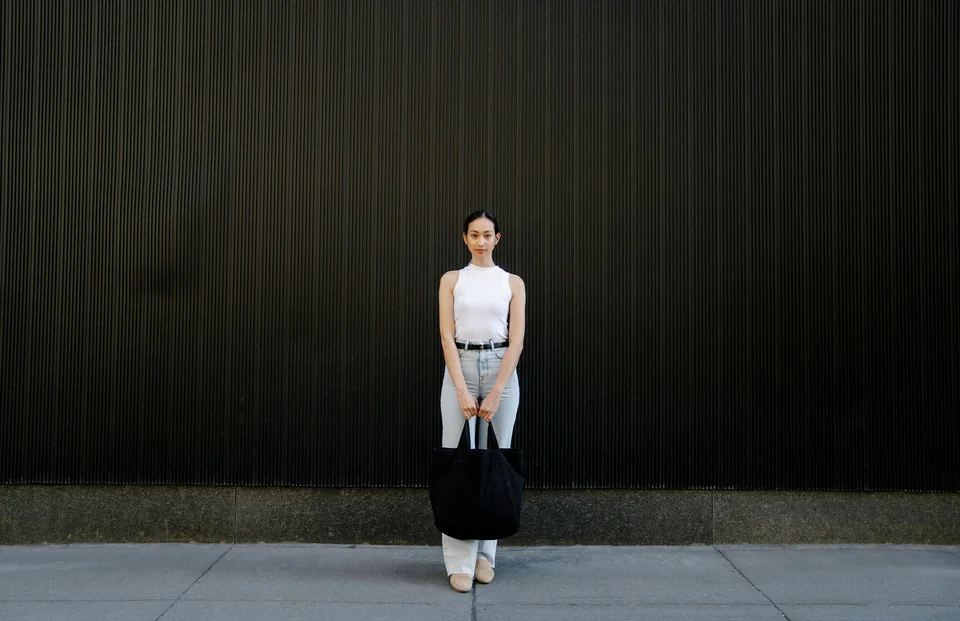
Original dimensions
Original dimensions
Resized proportionally

1536 × 993 px → 800 × 517 px.

Original dimensions
1536 × 993 px
Target width
800 px
Exported dimensions
800 × 517 px

How to do it

  1. Open the photo and keep the aspect ratio locked.
  2. Set the width to 800 px. The height adjusts with it.
  3. Export the image and check its new dimensions.

Resizing changes dimensions. File size also depends on format and quality.

Practical example and settings

Example: A 4000 × 3000 photo fitted proportionally inside 1200 × 1200 becomes 1200 × 900. Choose padding for a 1200 × 1200 file that keeps the whole photo, or crop to fill the square.

Choose your settings: Use pixels for a required output size and a percentage for simple scaling. Keep proportional sizing to avoid distortion. Enlarging an image does not recover missing detail.

If the result is unexpected: If the requested dimensions are rejected, check the option that prevents enlargement. Use at most 16 megapixels and 8192 pixels per side. Undo a resize before trying another size to avoid repeatedly resampling the same photo.

Questions about this tool

How do I avoid stretching my photo?

Choose Proportional to fit within the dimensions, or Fit with padding to preserve the whole image at an exact size. Stretch can distort it.

What image sizes are supported?

Use a static JPG, PNG or WebP up to 15 MB and 16 megapixels, with no side longer than 8,192 pixels.

More image tools

Edit and save
a new copy.

Use the tools in your browser without installing an app or creating an account.

01

Switch between tools

Open an image from your device and move between tools in the same editor.

02

Preview your changes

See the image as you edit. Undo the last changes, or start again from the original.

03

Save a new copy

Choose a format and download the result. The original file remains on your device.

Local processing

Image processing stays on your device.

The editor works on your device. Your selected image is not uploaded to our server.

How privacy works

Good to know

File limits, export quality and local processing.

Is my image uploaded?

No. The editor reads the image you select and processes it locally in your browser. We do not receive or store your image.

Which files can I use?

Static JPG, PNG and WebP images up to 15 MB and 16 megapixels, with no side longer than 8,192 pixels. GIF, HEIC, SVG, RAW and animated images are not supported.

Will a smaller file have the same quality?

JPG and WebP compression can remove detail. Compare the prepared result before downloading. PNG export is lossless for the edited pixels, but the file can be larger than the original.

Can PicMender find faces automatically?

Yes. Use Find faces automatically to suggest areas, then check and adjust them. Detection can miss faces or select the wrong area. Manual rectangles and circles remain available, and edits are included in the downloaded image.

Does it preserve camera metadata?

The editor creates a new image from pixels; original camera metadata, colour profiles and print resolution are not retained as an editing feature. Colours and fine detail may differ from the original.